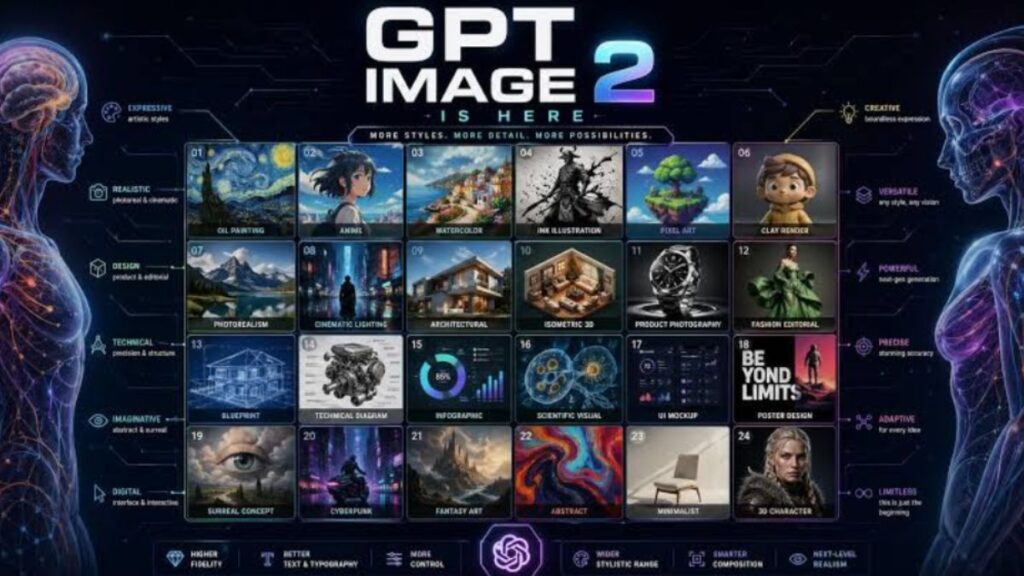
Whenever OpenAI updates their image model I take a weekend to re-test my old prompts and see what actually changed. With GPT Image 2.5 the difference was visible within the first few generations: an AI image generator that used to blur fine textures now renders fabric weave, skin detail, and reflective surfaces with noticeably more accuracy. So here’s what this release actually brings to the table, and where it fits if you’re choosing an AI image generator for serious work and not just casual experiments.
1. What Is GPT Image 2.5 in the AI Image Generator Realm?
The second version of GPT Image 2, GPT Image 2.5, launched on September 8, 2026, and is OpenAI’s answer to the two most common user complaints: soft detail and inconsistent editing. The model enhances natural lighting, texture richness, and how well a subject’s likeness holds up when you change its setting or style. As someone who creates product mockups frequently, the biggest win for me wasn’t in the quality of the images but in the consistency from one edit to the next, as previous versions tended to drift after two or three revisions.
2. Flare vs. Sunburst: Choosing the Right Model Variant
There are two API variants of GPT Image 2.5 Flare is the default, and it’s better quality than GPT Image 2, with about 50 percent lower latency. It’s well suited for social content, visual search, and rapid prototyping. Sunburst is the premium choice, built for tighter control over campaign creative and polished product imagery where every detail needs to hold up at full resolution. I tend to default to Flare for early concepting and only switch to Sunburst once a direction is locked in, as the added control is worth the added cost at that stage.
3. Multi-Turn Consistency and Fine-Grained Editing
One of the more practical upgrades is the model’s treatment of sequential edits. So instead of having to re-create an entire scene when you ask to change a small thing, GPT Image 2.5 preserves backgrounds, layouts, and brand elements and changes only the target part. In my testing, a five-step editing chain (swap background, change lighting, adjust subject pose, add logo, refine colors) stuck together without the quality degradation that previously made me start over.
4. New Creative Tools: Sketch, Templates, and Comments
This update also adds a Sketch feature that allows you to draw a rough visual outline right in ChatGPT and combine it with the written instructions, which is very helpful for when a prompt alone cannot describe a specific composition. Template support for things like posters and merch helps speed up common design tasks, and an image comments tool lets you flag one area for revision rather than rewriting the whole prompt. The shared prompts feature also allows collaborators to adapt a concept using their own reference assets.
5. Real-World Performance and Speed
That up-to-50-percent latency reduction is not just a marketing number, it changes how you work. The quicker turnaround means you can iterate more variations in one session, which is most important when you’re exploring options rather than executing a final asset. For any AI image generator in a production pipeline, that speed difference compounds quickly over dozens of daily generations.
6. Real-World Applications for Students, Marketers, and Creators
Visual communication students can illustrate concepts for presentations with GPT Image 2.5 without the need for design software. Sunburst tightens controls to get marketers from concept to campaign-ready imagery faster. The Sketch and template tools are a godsend for independent creators, lowering the skill floor for polished visuals. In all these cases the model’s better subject preservation leads to fewer wasted generations to try to keep a character or product consistent.
7. Tips for Optimal Results
In your first prompt, be specific about lighting, texture, and camera angle. GPT Image 2.5 works best with descriptive detail rather than vague requests. You use Flare for exploration, Sunburst for final output. In editing, simply state the change you want (the model retains what you don’t mention, so don’t re-describe the entire scene). More than any one setting these habits are what distinguish rough drafts from finished work with this AI image generator.
We are now rolling out GPT Image 2.5 to ChatGPT, ChatGPT Work and Codex for desktop, mobile and web. Both variants are available through the API. If your workflow relies on editing accuracy and speed of turnaround, it’s worth testing against whatever AI image generator you’re currently using.